
Our Recommended VPNs
Chosen after real-world testing across speed, privacy, and streaming. Each ranking is independent — we buy every VPN at retail and test it ourselves.

Fastest speeds, audited no-logs, 6000+ servers

Unlimited devices, CleanWeb blocker, 100+ countries

Swiss privacy laws, open-source, free tier

Lifetime plans, 10 devices, ad blocker

Unlimited devices, streaming-optimized, audited no-logs
We earn a commission when you click “Get” buttons, at no extra cost to you. Read our affiliate disclosure
Why Your Router Is Your Biggest Vulnerability
Your home router is the gateway between your devices and the internet. Every device on your network — laptop, phone, smart TV, IoT sensors — routes through it. If your router is compromised, everything behind it is exposed.
Most people never change their router's default settings. This is like leaving your front door unlocked with a "Welcome Hackers" sign.
Step 1: Change the Admin Password
Every router ships with a default admin password, usually printed on a sticker. These defaults are publicly known. Attackers with access to your Wi-Fi (or even remotely in some cases) can log into your router's admin panel.
Action:
- Connect to your router's admin page (usually 192.168.1.1 or 192.168.0.1)
- Log in with the current credentials (check the sticker)
- Navigate to Administration or System settings
- Change the admin password to a strong, unique one
- Store it in your password manager
Step 2: Update the Firmware
Router firmware updates fix security vulnerabilities. Many routers run outdated firmware with known exploits.
Action:
- In the admin panel, find System > Firmware Update
- Check for and install any available updates
- Enable automatic updates if available
- Set a calendar reminder to check quarterly if auto-update isn't available
Step 3: Enable WPA3 (or WPA2-AES)
Wi-Fi encryption prevents unauthorized access and eavesdropping.
Encryption rankings (best to worst):
- WPA3 — Current gold standard (use if your devices support it)
- WPA2-AES — Still secure, widest compatibility
- WPA2-TKIP — Older, avoid if possible
- WEP — Broken. Never use
- Open — No encryption. Never for home
Action: In Wireless Settings, set security mode to WPA3 or WPA2-AES with a strong passphrase (12+ characters).
Step 4: Change the Default SSID
The default network name (like "NETGEAR-5G" or "TP-Link_A4F2") reveals your router manufacturer, making targeted attacks easier.
Action: Change to a unique name that doesn't reveal the router brand, your name, or apartment number.
Step 5: Set Up a Guest Network
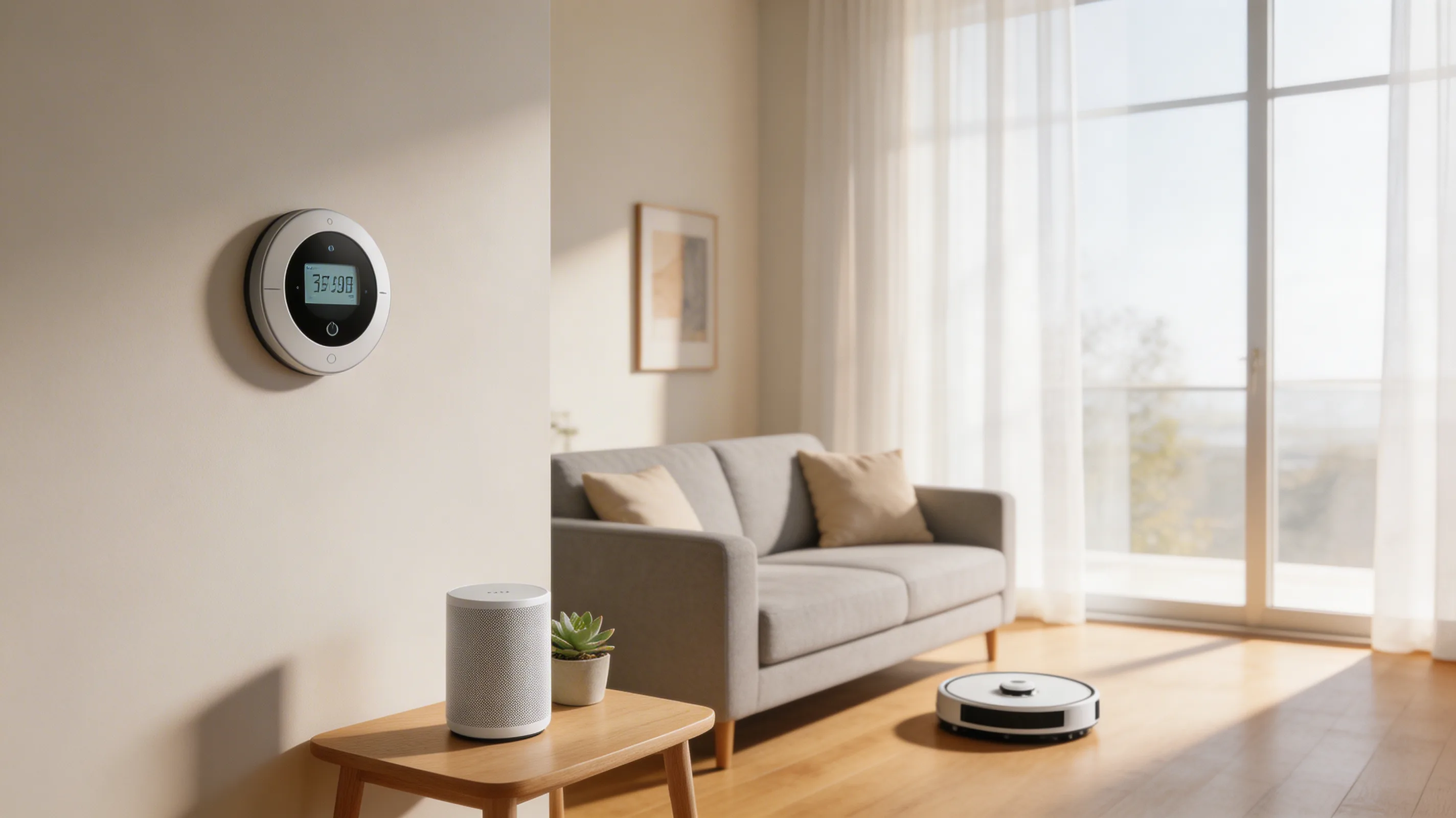
A guest network isolates visitors' devices from your main network. More importantly, put IoT devices (smart TVs, speakers, cameras) on the guest network so a compromised smart device can't access your work computer.
Action:
- Enable Guest Network in your router settings
- Set a separate password
- Disable guest access to local network resources
- Connect all IoT devices to this network
Step 6: Disable WPS and UPnP
- WPS (Wi-Fi Protected Setup): The PIN mode is vulnerable to brute-force attacks. Disable it
- UPnP (Universal Plug and Play): Automatically opens ports, which can be exploited. Disable unless specific devices require it
Step 7: Consider a VPN on Your Router
Some routers support VPN client installation, encrypting all traffic for every connected device. This is the most comprehensive approach — your phone, laptop, smart TV, and IoT devices all benefit.
Routers that support VPN clients: ASUS RT series, Netgear Nighthawk, GL.iNet, Vilfo, and routers running custom firmware like DD-WRT or OpenWrt.
How We Verified
All settings tested on current router firmware from ASUS, TP-Link, Netgear, and Google/Nest in April 2026. Security recommendations based on CISA home router guidelines and NIST SP 1800-21.
Continue learning
Related Guides
How to Share Passwords Safely: Stop Using Slack and Email (2026)
Secure methods for sharing passwords, API keys, and credentials with teammates. Password manager sharing, Bitwarden Send, and one-time links.
Sarah ChenDevice Encryption Guide: Protect Your Data If Your Laptop Is Lost (2026)
How to enable full-disk encryption on Windows, Mac, iOS, and Android. Your data stays secure even if your device is stolen.
Sarah ChenEndpoint Security for Remote Workers: Beyond Antivirus (2026)
Your devices are endpoints in the security chain. Modern endpoint protection goes beyond antivirus — here's what you need in 2026.
Sarah ChenWas this guide helpful?
What's next
Keep exploring
Sources & Citations
- 1CISA: Securing Your Home Router
- 2NIST SP 1800-21: Securing Home IoT Devices